


A free, open source Chrome extension that redraws Gmail into a dark, quiet inbox. We installed it on Chrome for Linux, used it on a test Gmail account, then turned on the bring-your-own-key AI and tried that too.
By the FutureTechSpot Editorial Team · Published 2026-11-02 · Last verified 2026-11-01 · Methodology
TL;DR
Umbra Mail is a free, open source Communication Chrome extension by Mason Chen (masn.studio) that redraws Gmail into a calmer, decluttered inbox, with a Ctrl+K command palette, chat-style conversations, and optional bring-your-own AI. Gmail stays underneath and carries out every action. We tested version 1.25.6 hands-on on Chrome for Linux on 2026-11-01, with and without its AI features (OpenAI gpt-4o-mini, own API key). Overall score: 6/10. Best for: Gmail users who live in a pinned tab, want it to look quieter, and do not mind an early version.
Key facts
| Field | Value |
|---|---|
| Name | Umbra Mail |
| Developer | Mason Chen (masn.studio) |
| Category | Communication (Chrome Web Store) |
| Price | Free, no Pro tier, as of 2026-11-01 |
| License | GNU GPL v3.0 (open source, github.com/Mason363/UmbraMail) |
| Version tested | 1.25.6 (Store listing updated 2026-10-18) |
| Chrome Web Store users | 24 (as of 2026-11-01) |
| Rating | New listing, no ratings yet |
| Size | 629KiB |
| Runs on | mail.google.com in Chrome; also published as a userscript |
| AI | Optional, off unless you turn it on; bring your own key (ChatGPT, Gemini, OpenAI, Anthropic), or use Gmail’s own Gemini first |
| How we tested | Hands-on, 2026-11-01, Chrome on Linux, dedicated test Gmail account; AI tested with OpenAI gpt-4o-mini on our own key |
| Overall score | 6/10 |
| Chrome Web Store URL | chromewebstore.google.com/detail/umbra-mail/knncmggokkablenghpnhicpamlnhfpip |
| Official site | umbra.masn.studio |
| Privacy policy | umbra.masn.studio/privacy |
| Last verified by us | 2026-11-01 |
The first ten seconds are the best ten seconds
I clicked “Open my inbox” at the end of Umbra Mail’s setup and Gmail went quiet. Not quieter. Quiet. The red, the tabs, the sidebar of folders nobody has opened since 2017, the banner offering to try a feature: gone. In their place was a dark full-window inbox, a small green dot next to the word Personal, three conversations, and a round + button in the bottom right corner for writing something new.
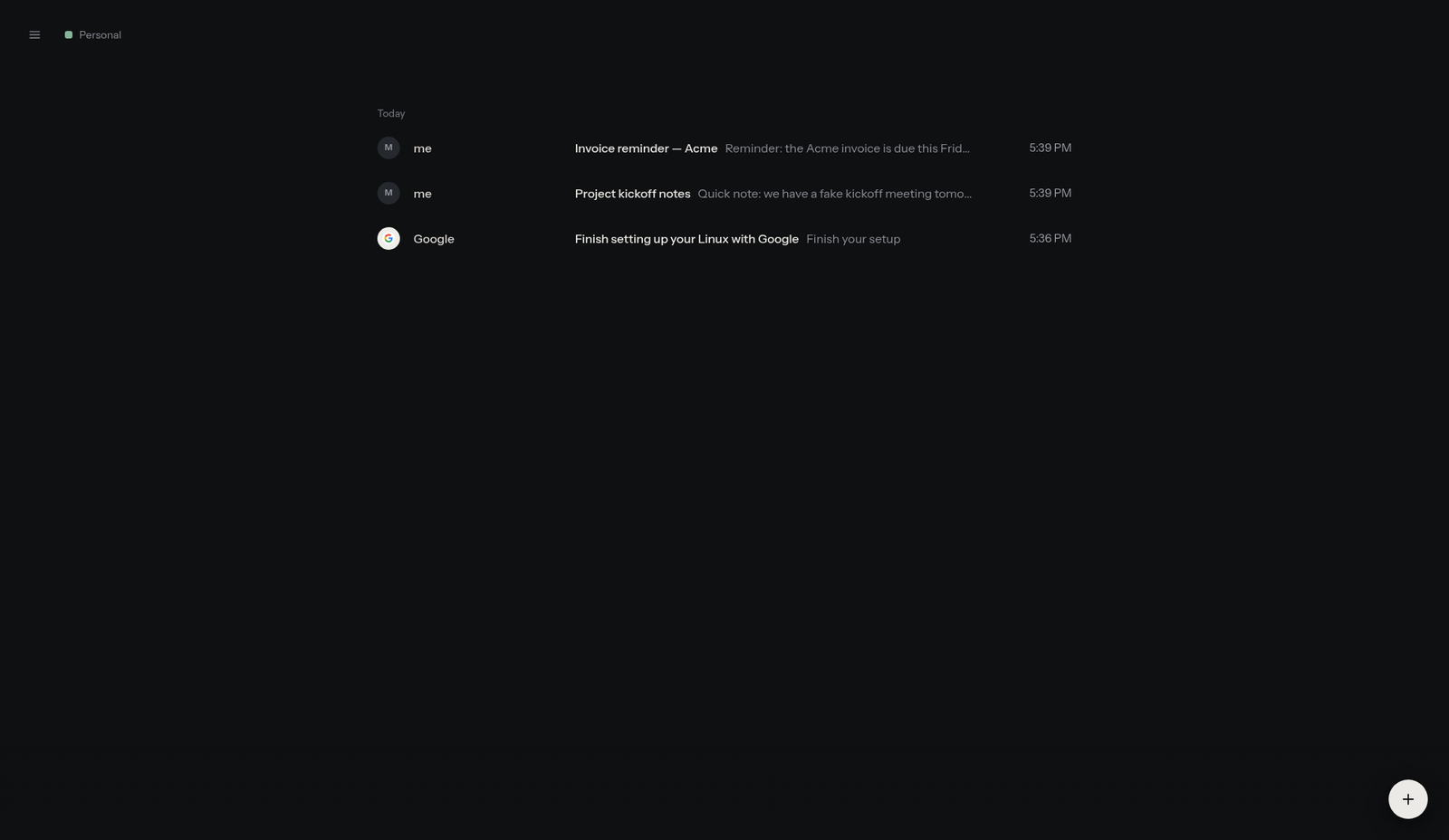
It is a genuinely nice room. I sat in it for a moment, the way you sit in a hotel room before you find out the shower has two settings, scald and regret.
Then I tried to do things in it, and the review became a list of almosts.
Who made it
Umbra Mail is a one-person project by Mason Chen, published as masn.studio. The privacy page calls it “a free project by an individual developer,” the source is public under GPL-3.0, and the code went up on GitHub on 2026-10-09. The Store listing reached version 1.25.6 nine days later. That is the release pace of someone who uses their own tool every day, which also explains a few things below.
The pitch, from the official site, is four lines: new mail a few times a day, newsletters in one page, optional AI, nothing leaves your computer.
Setup: almost no decisions, one good one
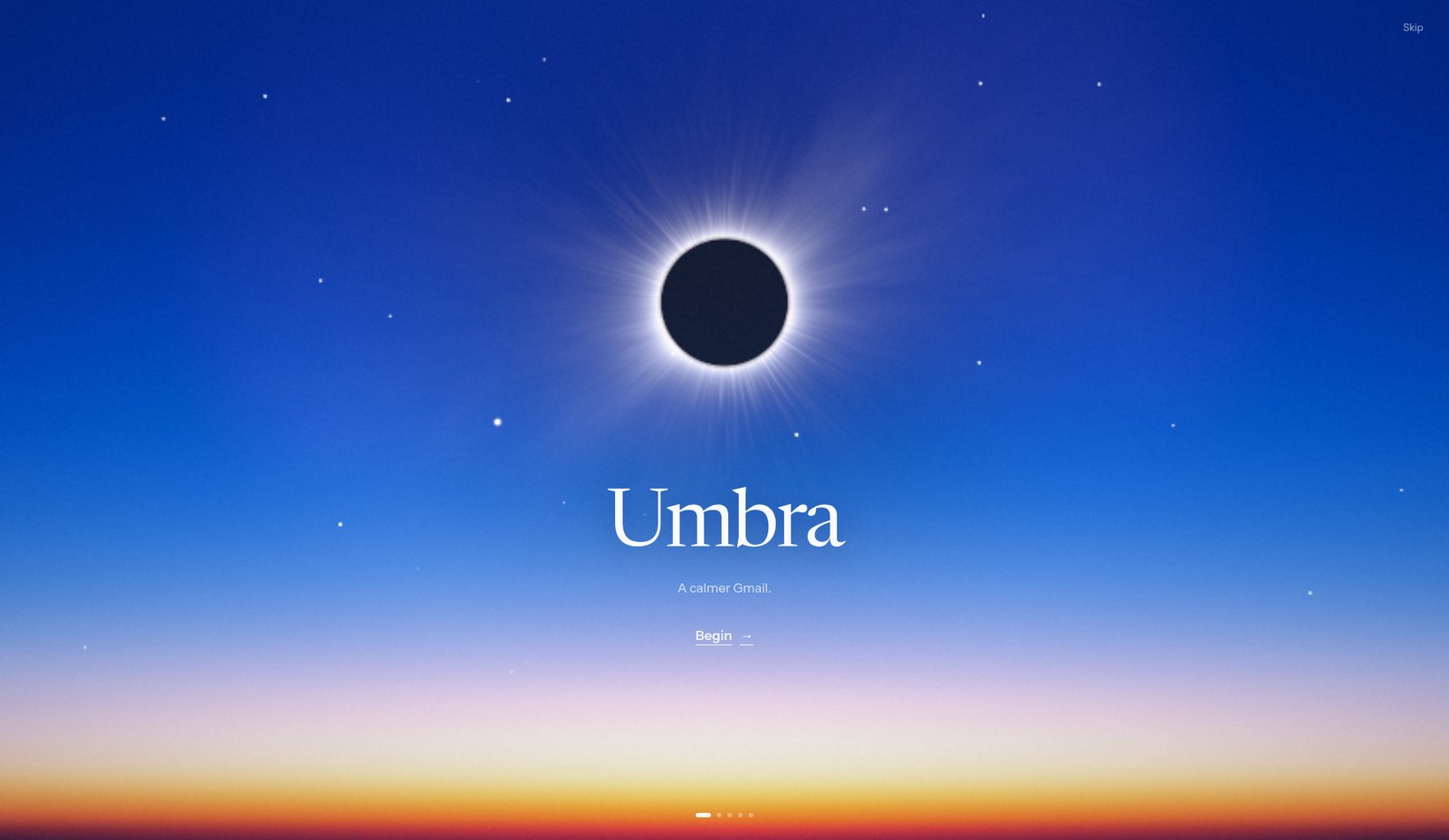
Setup is a short run of cards: Welcome, what Umbra does, how it looks, whether you want AI, keyboard shortcuts, then the inbox. I left delivery on “As it comes” and the look on defaults.
The AI card offers several providers. I chose No AI, and the extension respected that without a second ask. That is the right default for an email tool. Email is where your bank, your doctor, and your landlord all live, and the European Data Protection Board’s guidance on data protection by design and by default makes the same point more formally: by default, process only what the purpose needs. If you do turn AI on later, you bring your own provider and pay it directly, which is worth a look at what AI tokens actually cost first. I did the first pass with AI off, then came back and turned it on. More on that below.
Tip: pin the Umbra Mail icon after you install it. Chrome hides new extension icons behind the puzzle piece, and you will want it close by when you need to step back to plain Gmail.
What actually works
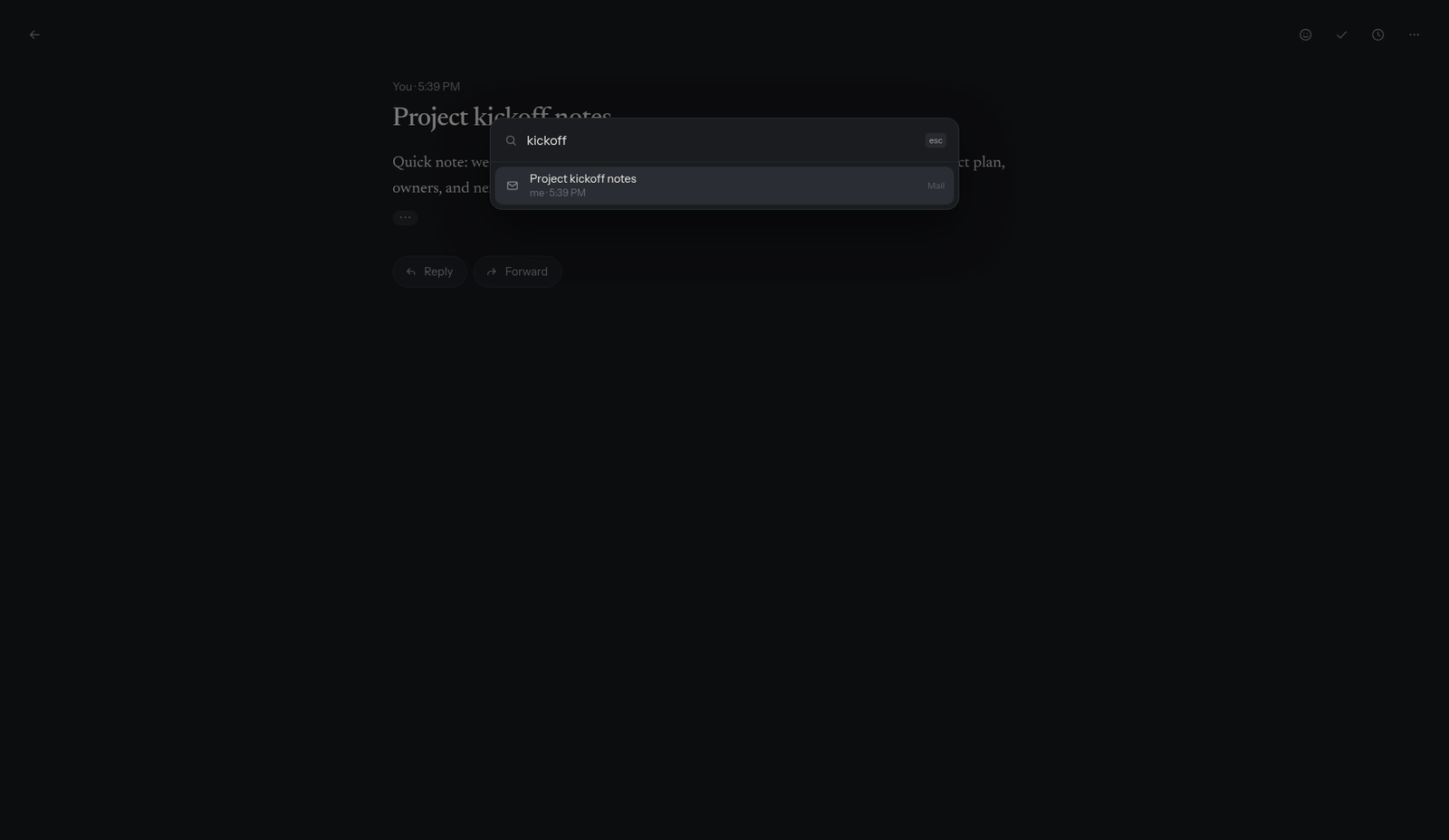
The core of it is sound.
- Ctrl+K. The Actions palette opened every time, found commands from a fragment of their name, and found mail by subject. Typing “kickoff” pulled up my “Project kickoff notes” test email straight away. It can also flip settings directly from the palette.
- Reading. Opening a conversation gives a clean dark page with Reply, Forward, React, Done, Later, and More along the top. Unread counts went down as I opened things, as they should.
- Writing. The + button opens a dark compose window. Sending worked. Typing emoji straight into the body worked.
- Labels and look. The labels flyout works, and the theme toggles apply immediately. I switched on “Lines between conversations,” confirmed it changed, and switched it back.
- Nothing flickered. We did not once see classic Gmail flash through underneath, which is the usual tell of a Gmail redraw.
If the review stopped here, this would be a 7 or an 8.
Almost: a Mac, on a computer that is not a Mac
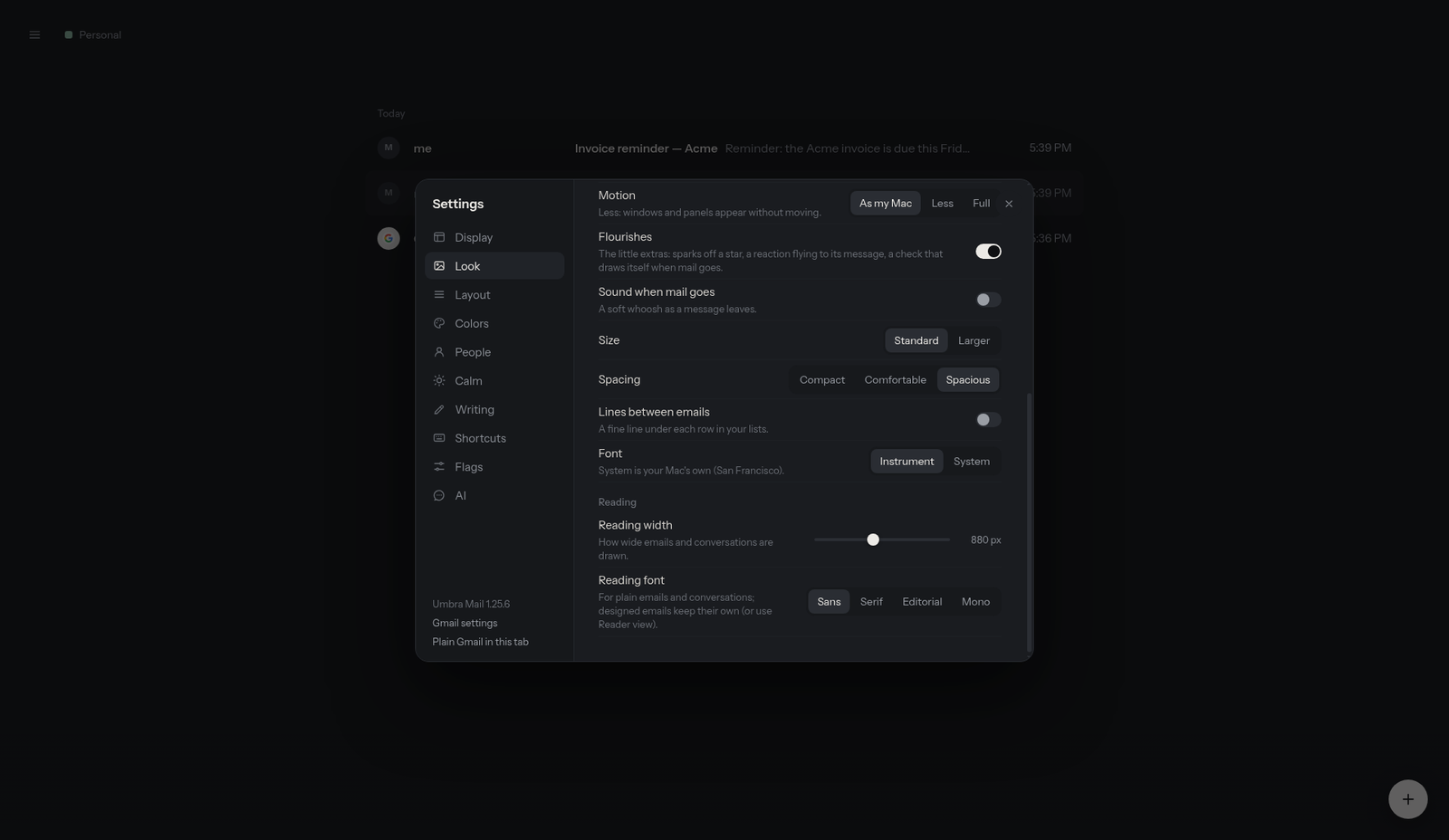
I tested on Linux. Umbra Mail is confident I am on a Mac.
The setup and help text talk about ⌘ shortcuts. The appearance options say Match system “follows your Mac” and offer “As my Mac.” The font setting explains that System “is your Mac’s own (San Francisco).” On Linux, the shortcut that actually works is Ctrl+K, and the font is whatever Linux has, which is not San Francisco. A colleague who tried Umbra Mail on Windows a few days earlier saw the same Mac wording there.
None of this breaks anything. It just tells you, gently and repeatedly, which computer the tool was built on.
Almost: settings in a box
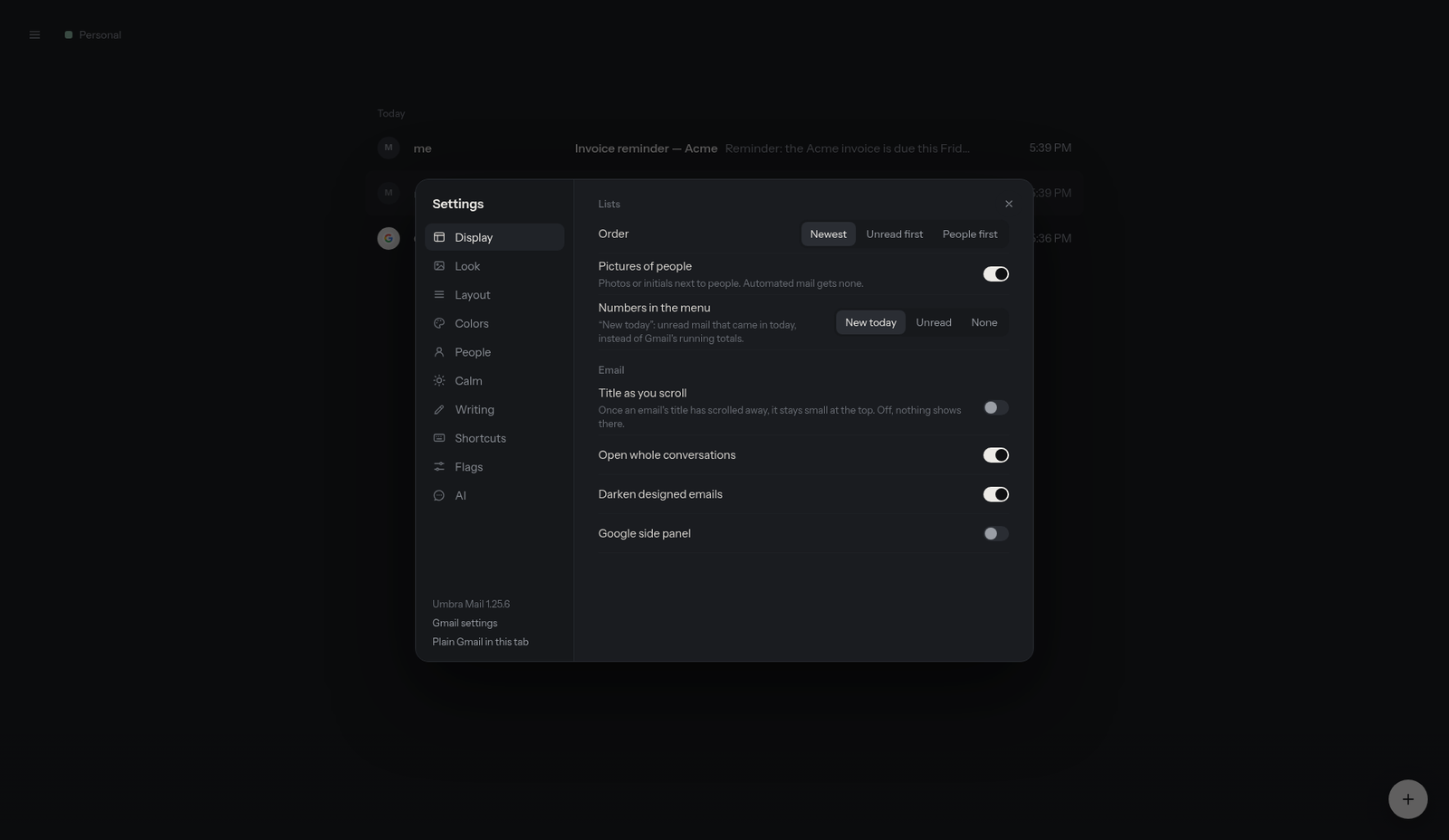
Settings opens from the menu as a centered panel, roughly the size of a large dialog, floating over a dimmed inbox. For an app with this many options, it is a lot of scrolling through a letterbox. The AI tab, with AI off, is a single switch above a large empty space, which is honest but looks unfinished. It fills up once AI is on.
Almost: two seconds, every time
Opening a conversation from the inbox took about two seconds in our test, somewhere between 1.7 and 2.6. Going back to the inbox took about two more. Plain Gmail is not fast, but it is faster than that. Two seconds does not sound like much until you do it forty times before lunch. The calm look starts to feel less like calm and more like waiting.
This was a nearly empty test inbox. We did not test a mailbox with thousands of threads, so we cannot tell you whether it gets better or worse there.
Almost: the emoji picker you cannot see
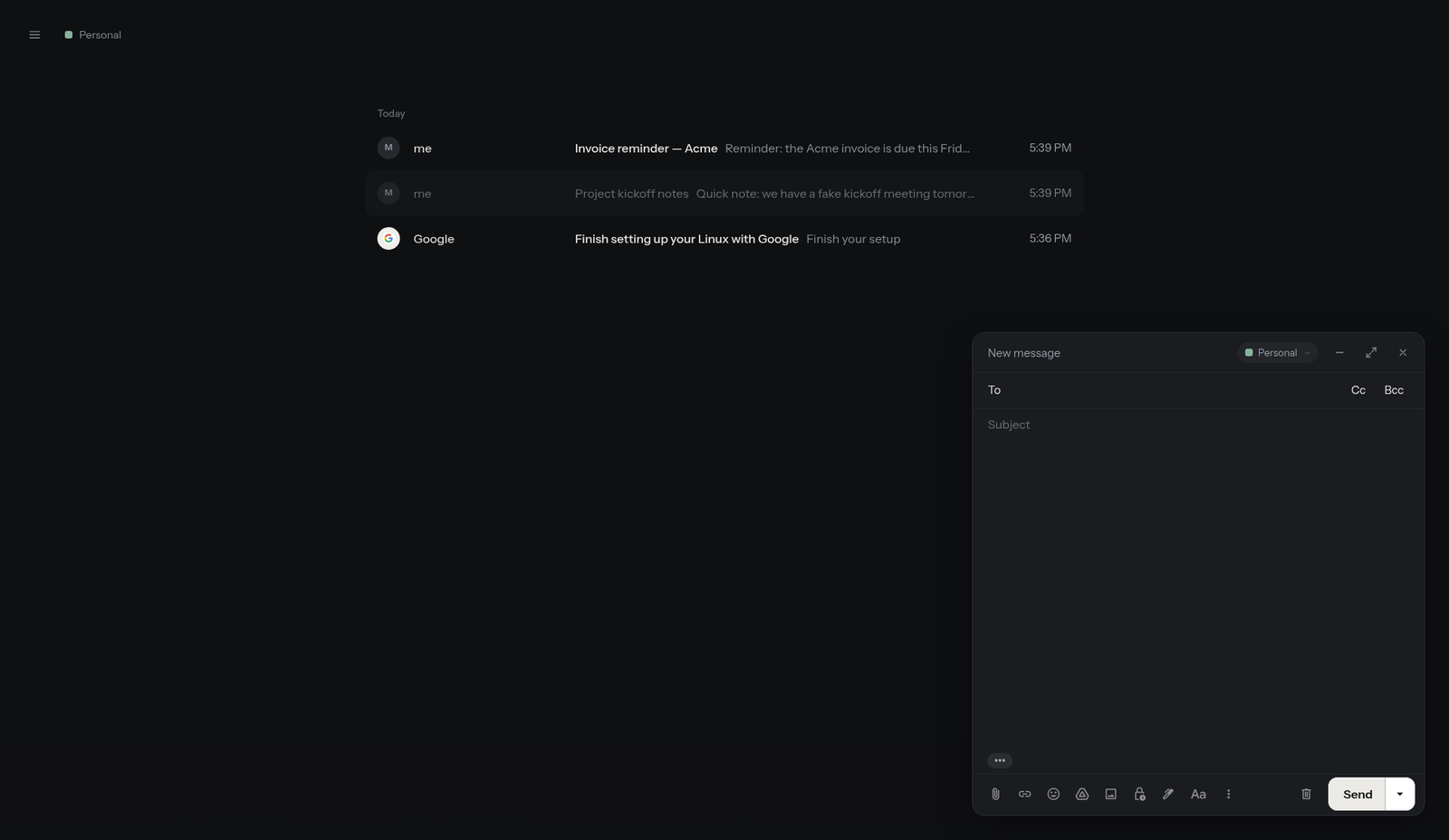
Compose has an emoji picker on Ctrl+Shift+2. It opens, in the sense that it takes the keyboard and the mouse. It does not appear on screen. Clicks and typing go into an invisible search box, and the message you were writing stops responding until you get out of it. Typing an emoji directly into the message works fine, so the workaround is to not use the emoji feature.
Almost: Show original, shown nowhere
Under More on an open message, Show original is listed, as in Gmail. Clicking it closes the menu and nothing else happens: no new tab, no download, no raw message. If you are the sort of person who checks email headers, you will be doing that in plain Gmail. The same More menu also repeats Report spam, Delete, and Print in a second block, which is harmless and a little untidy.
One more small one: discarding a draft does not ask first. It is just gone, and Drafts says “Nothing here.”
Almost: the AI, which is half a very good assistant
For the second pass I turned AI on. Umbra Mail offers ChatGPT, Gemini, OpenAI, and Anthropic, plus an option to try Gmail’s own Gemini first. I pasted an OpenAI key, it was checked in about four seconds, and a list of roughly 75 models appeared. I picked gpt-4o-mini, the cheap one. There is a usage meter in settings, which is the kind of thing you only appreciate after you have once received an API bill. Our whole test cost fractions of a cent.
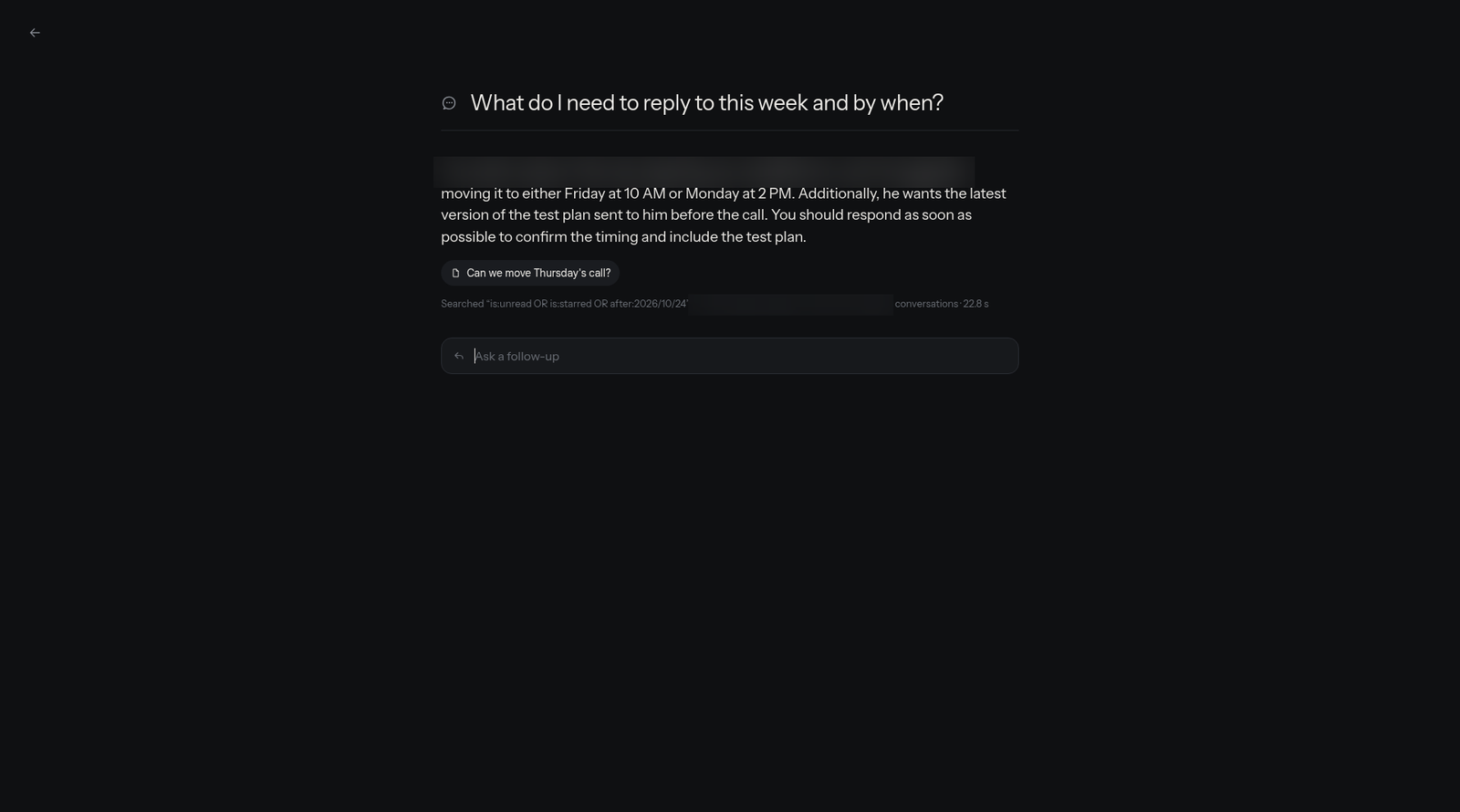
Ask (Ctrl+K). This is the good half. I asked it to list my newsletters. The answer started streaming after about six seconds, finished at about sixteen, was accurate, and came with little source chips linking back to the emails. It found 11 of the 14, which is a B-plus, and it printed its bold text as literal **asterisks**, which is a cosmetic bug and also a small window into how the sausage is made. Then I asked “what do I need to reply to this week.” It took 22.8 seconds and got the facts right. Slow, but right is the harder part.
Summaries. On demand, two to four seconds, two accurate bullets. Terse, in the way of a colleague who read the email and does not want to talk about it. Short emails do not get an automatic summary, which is fair; a summary of a two-line email is the email.
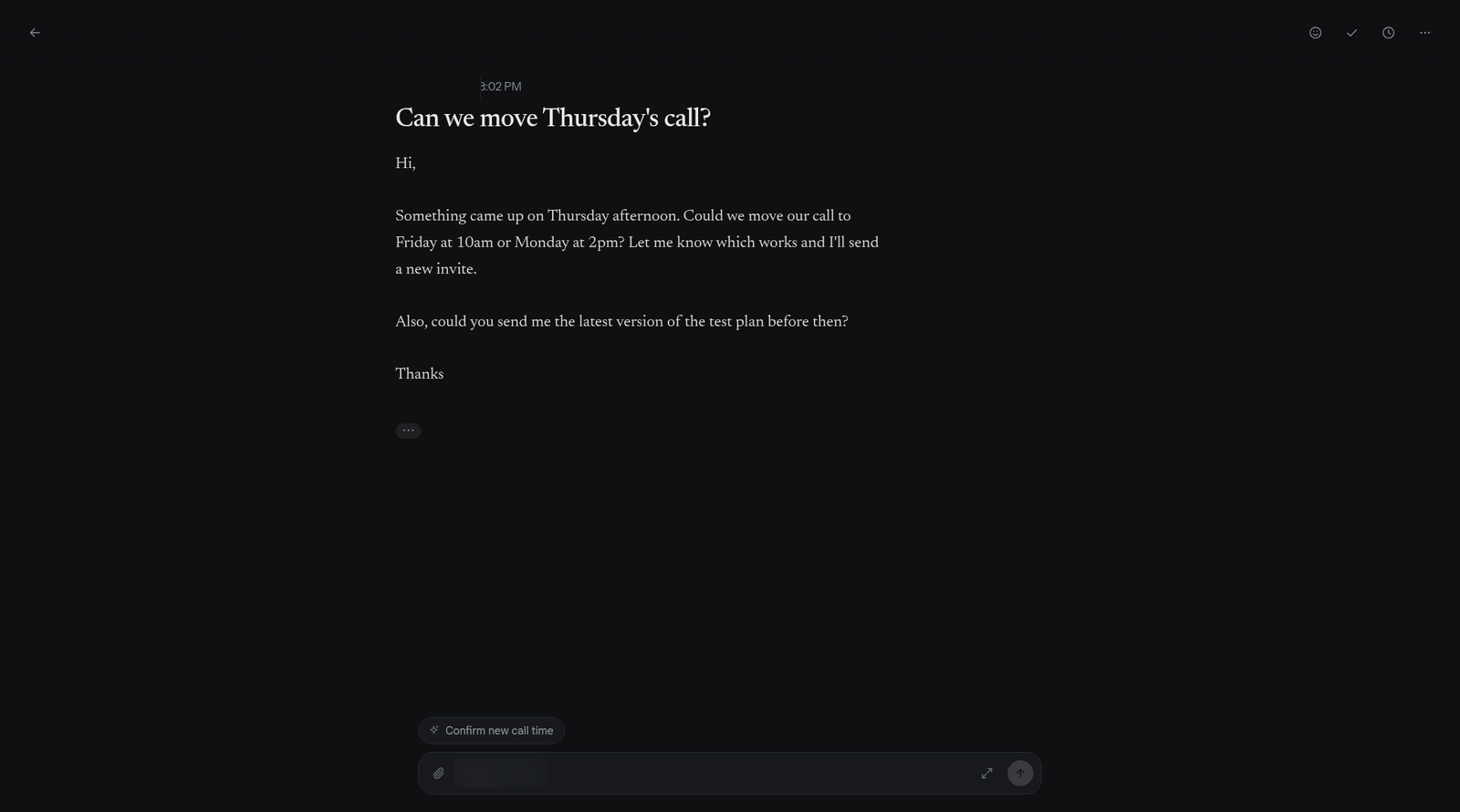
Suggested replies. The setting says Always. In practice the suggestion only showed up after I clicked Reply, took eight to ten seconds, and offered a single chip. The text it inserted was good, though: it picked one of the meeting times the sender offered and answered the actual question.
Needs you. This is the triage filter that is supposed to show mail waiting on you. It showed zero results while an email that plainly asked for a reply sat in the inbox. The Ask feature, a few seconds earlier, had found that same email without trouble. The two features do not seem to have met.
Inbox brief. There is a toggle for a brief at the top of the inbox. I switched it on. It never appeared.
Writing. There is no AI compose or draft button. Composing is plain Gmail, which some people will consider a feature.
No errors from the provider at any point. So the AI that answers questions is genuinely useful, and the AI that is supposed to organize the inbox for you did not show up for work.
What we did not get to
Umbra Mail’s headline feature is Tides, which holds new mail and lets it in a few times a day. The second is a newsletter page that folds subscriptions into one daily edition. There is also a reader view for heavily designed emails.
We did not verify Tides. Our test mailbox was small, a handful of emails we sent ourselves plus a batch of newsletters for the AI pass, and Tides needs days of real mail to judge, not an afternoon. We did not get to the newsletter page or reader view either. Reader view is mentioned in the app’s help, but we did not have a long designed email to try it on. So the features that make Umbra Mail different from a dark theme are, for now, the ones we can only describe from the developer’s own site.
What it costs
| Plan | Price | What you get |
|---|---|---|
| Umbra Mail (Chrome extension or userscript) | Free | All features, GPL-3.0 source, no account |
| Pro tier | None | No paid tier as of 2026-11-01 |
| Optional AI (bring your own key) | Billed by the provider you choose, if you turn it on; our gpt-4o-mini test cost fractions of a cent | Ask, summaries, suggested replies, triage filter, inbox brief |
It is free, open source, and has no Pro tier. The only bill is your AI provider’s, and only if you turn AI on.
Alternatives
Simplify Gmail already does the cleaner-Gmail job and is the better-known name. Umbra Mail’s difference is the delivery schedule and the newsletter page, which we have not tested yet. For AI inside Gmail from a sidebar instead, see our Bravo review.
| Tool | Type | Price | Core difference |
|---|---|---|---|
| Umbra Mail | Chrome extension / userscript over Gmail | Free, open source | Dark, decluttered redraw; Ctrl+K palette; batched delivery (not tested) |
| Simplify Gmail | Chrome extension over Gmail | Free | Cleaner Gmail layout, no delivery schedule |
| Gmail (plain) | Web app | Free | Built-in tabs and snooze; fastest of the three in our use |
| Superhuman | Separate email client | Paid subscription | Speed-focused client outside Gmail’s web interface |
If you are leaving Google services altogether, a Gmail skin is not that project. Our piece on de-Googling Android covers that road.
Verdict: a calm room with a squeaky door
Umbra Mail gets the hardest part right. Gmail really does look calm, the palette is quick to reach and useful, and reading and writing mail work. The AI Ask box is a real find: point it at your inbox, ask a plain question, get a sourced answer. It also costs nothing and has no server of its own, which is a generous way to publish a tool.
What it does not do yet is feel finished. The Mac wording on other systems, the boxed-in settings, two seconds per click, an emoji picker that exists only in theory, a Show original that does nothing, and AI triage and inbox brief features that did not work add up to an early version used mostly on one person’s Mac. Those are fixable, and at this release pace they may be fixed soon. We will retest Tides and the newsletter page with a real mailbox and update this review.
For now: install it if a quieter Gmail matters more to you than speed, keep plain Gmail one click away, and do not count on the emoji button.
Tested on November 1, 2026 with version 1.25.6 in Chrome on Linux.
| Sub-score (hands-on, version 1.25.6) | Score |
|---|---|
| Look and calm | 8/10 |
| Ctrl+K palette | 8/10 |
| Everyday mail (read, reply, compose) | 7/10 |
| Speed | 4/10 |
| Polish (platform wording, settings, emoji picker, Show original) | 3/10 |
| AI, bring your own key (Ask, summaries, replies, triage, brief) | 5/10 |
| Overall | 6/10 |
FAQ
What is Umbra Mail? Umbra Mail is a free, open source Chrome extension by Mason Chen that redraws Gmail into a calmer, decluttered design, with a Ctrl+K command palette, chat-style conversations, and optional AI. Gmail stays underneath and carries out every action.
Is Umbra Mail free? Yes. Umbra Mail is free and open source under GPL-3.0, with no Pro tier as of 2026-11-01. If you turn on the optional AI features, the AI provider you choose bills you directly.
Did FutureTechSpot test Umbra Mail? Yes. We tested Umbra Mail 1.25.6 hands-on on 2026-11-01 in Chrome on Linux, with a dedicated test Gmail account, first with AI off and then with AI on using OpenAI gpt-4o-mini on our own API key. We have not yet tested Tides, the newsletter page, or reader view.
Does Umbra Mail work on Windows and Linux? Yes, it runs in Chrome on Linux, and a colleague used it on Windows. On both, some settings and help text still refer to Mac keys and the Mac system font. Use Ctrl+K instead of ⌘K.
Is Umbra Mail slow? In our test, opening a conversation and returning to the inbox each took about two seconds, which is slower than plain Gmail. We tested a small inbox only.
Do Umbra Mail’s AI features work? Partly. In our test with OpenAI gpt-4o-mini, Ask (Ctrl+K) gave accurate, sourced answers in about 16 to 23 seconds, on-demand summaries took 2 to 4 seconds, and suggested replies appeared after clicking Reply. The Needs you triage filter showed no results when it should have, and the inbox brief did not appear. There is no AI compose button.
What does Umbra Mail’s AI cost? Umbra Mail is free. AI uses your own API key from ChatGPT, Gemini, OpenAI, or Anthropic, and that provider bills you directly. Our test with gpt-4o-mini cost fractions of a cent.
Does Umbra Mail replace Gmail? No. Umbra Mail is a new interface over Gmail. Gmail does the actual work, and you can go back to plain Gmail at any time.
Sources
- Hands-on test of Umbra Mail 1.25.6, Chrome on Linux, 2026-11-01, AI off and AI on with OpenAI gpt-4o-mini (FutureTechSpot)
- Chrome Web Store listing: https://chromewebstore.google.com/detail/umbra-mail/knncmggokkablenghpnhicpamlnhfpip (read 2026-11-01)
- Official site: https://umbra.masn.studio/ (read 2026-11-01)
- Privacy policy (effective 2026-10-09): https://umbra.masn.studio/privacy (read 2026-11-01)
- GitHub repository: https://github.com/Mason363/UmbraMail
- EDPB Guidelines 4/2019 on Article 25, Data Protection by Design and by Default: https://www.edpb.europa.eu/our-work-tools/our-documents/guidelines/guidelines-42019-article-25-data-protection-design-and_en
Change log
- 2026-11-01: Added hands-on AI results (OpenAI gpt-4o-mini, own key): Ask, summaries, suggested replies, Needs you filter, inbox brief. Added AI sub-score (5/10); overall unchanged at 6/10.
- 2026-11-01: First published. Hands-on review of Umbra Mail 1.25.6 on Chrome for Linux, AI off. Tides, newsletter page, and reader view not yet tested.
FutureTechSpot reviews are independent. We were not paid for this review. See how we test, and our review of another small-developer Chrome extension, Bookmarks But Better.
Related Stories
Diet Claude Review 2026: Claude Hid the Meter in Settings
A soda-can Chrome listing that wants Claude's 5-hour bar on the chat, not two clicks away in Settings.

Unhook Review 2026: Shorts Hidden in Three Places, a Blank Page at the Fourth
We tested the Unhook Chrome extension (1.6.9). It hid Shorts from YouTube's menu, search and a channel page,…

Open Inspector Review: We Checked the CSS Inspector Against Chrome DevTools
We tested Open Inspector 0.0.5 hands-on: a free Chrome extension that shows the CSS, fonts, colours and spacing…